Access e-Learning courses on ProtectUK
You need to register with ProtectUK to access and complete the e-Learning courses.
Once you’ve signed up to ProtectUK, you can log in to your account via the ProtectUK website and access the Action Counters Terrorism (ACT) Awareness course, Act for Education and ACT Security e-Learning.
If you have a problem accessing the e-Learning, or you need a password reset or help with certificates, please refer to the frequently asked questions. Do not call any Police telephone numbers or helplines as they cannot help you with your query.
How to register with ProtectUK
To access e-Learning on ProtectUK, you need to create an account.
You can visit the ProtectUK Signup page and register.
As part of the registration process, you will receive a one-time password link in an email to set your password.
In some cases, this email might go into junk or spam mailboxes, so please check these if the email does not arrive.
Frequently asked questions
Our two most frequently asked questions are:
1. My account is blocked – What do I do?
Sometimes an account can get blocked on the system. This might happen due to a failed login attempt.
Please try and log in again; if this is unsuccessful, use the ‘Request new password’ option on the log in page.
2. How do I access my e-Learning certificate?
After you have successfully completed every module in the course, you will be awarded a certificate. This can be found in your user profile.
You can access your certificate by following these steps:
- Log in to your ProtectUK account and go to your user profile
- Your user profile will have an option called ‘Certificate received’
- Select this option and then select ‘Download’
- Your certificate should be now visible in a PDF format
- You can download this PDF to your device
When progressing through the e-Learning course, users might be tempted to press the red ‘Next’ button located outside the e-Learning screen. Please avoid clicking the red Next button until you have reached the end of each module. Pressing this button too early may affect your score or progress and may not generate a certificate.
Users will be able to tell when they have completed each module because they will see the following screen:
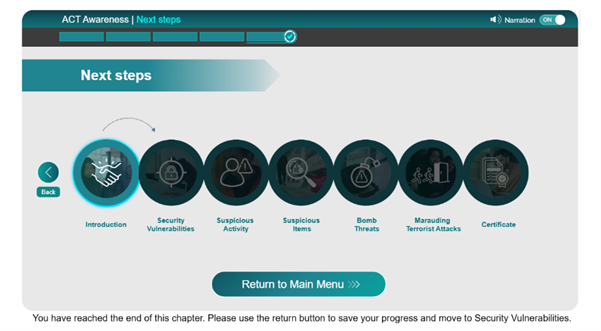
Our other frequently asked questions about starting the e-Learning and what to do when you have completed the e-Learning are as follows:
Before the e-Learning course – Frequently asked questions
Where can I find the e-Learning courses on ProtectUK?
The ACT Awareness, ACT Security and ACT for Education courses are hosted on ProtectUK in the e-Learning section.
Who is the e-Learning for?
The e-Learning is suitable for everyone. It helps people who are part of organisations and businesses, as well as everyone in their day-to-day life, to be more aware of security and safety issues.
Which internet browser should I use?
We generally recommend using Google Chrome for best performance. Other browsers may not be as fast and efficient for the modules’ requirements.
If you have problems accessing the learning modules, the e-Learning takes too long to load or the system isn’t working very well, it may be a cache issue on your device.
We suggest you clear your browsing data and cookies and empty the cache in your browser before trying again.
For the ACT Awareness e-Learning, Google Chrome, Safari, Firefox and Microsoft Edge are supported. All browsers must be up to date for best performance.
A minimum connection speed of 5 Mbps is recommended.
Check your speed here: fast.com
Slower connections may cause:
- Loading problems
- Loss of progress
- Course freezing
Unfortunately, progress cannot be recovered if your connection is interrupted.
Can I complete the e-Learning offline?
No. To complete the e-Learning you must be online and connected to the internet via Wi-Fi or internet data on your device. You need to be logged in to your ProtectUK account.
We recommend that you use a reliable, strong internet connection to avoid any disruptions, which may affect your progress through the e-Learning.
Does the e-Learning work on mobile devices?
The e-Learning is accessible via a mobile device. However, we advise you to complete the e-Learning on a larger device such as a computer or tablet.
This enables you to have a better learning experience and the e-Learning is displayed better on larger screens.
Do I need to complete the e-Learning course in one sitting?
The e-Learning can be completed in one sitting, which should take between 60 to 90 minutes. However, if you wish to finish the e-Learning another time, you can resume your progress. You can log back in and carry on from where you left off.
Can I deliver an e-Learning course to a group?
Yes, the course can be completed as an individual or in a group setting.
There is a facilitation guide available to support group delivery.
You will only receive one certificate for the whole group, not one per session attendee.
Do all my employees need to sign up to ProtectUK to complete their ACT e-Learning?
No. Larger organisations can register for either a unique URL and pin to access the e-Learning, or a SCORM package which can be placed in their own Learning Management System (LMS).
A pin or SCORM file can be requested by registering at https://ct.protectuk.police.uk/register/new-org.
Completing the e-Learning course – Frequently asked questions
The e-Learning has frozen, and I can’t progress – What do I do?
If you are unable to progress with your e-Learning it may be a cache or browser issue on your device.
You should clean your device’s history and cookies on your browser and use Google Chrome as your browser.
For the ACT Awareness e-Learning, Google Chrome, Safari, Firefox and Microsoft Edge are supported.
Please note that using a browser which is outdated or not recommended in the list above may lead to the course buffering or freezing, and as a result saved progress may be lost.
You may need to restart your device and log in again if required.
My account is blocked – What do I do?
Sometimes an account can get blocked on the system. This might happen due to a failed login attempt.
Please try and log in again; if this is unsuccessful, use the ‘Request new password’ option on the log in page.
I’ve completed the course - Why is my progress not showing as 100%?
All modules must be completed to the end. If you skip through each module without fully completing each activity, you will not successfully pass the course.
When progressing through the e-Learning course, users might be tempted to press the red ‘Next’ button, which is located outside the e-Learning screen.
Please try to avoid clicking the red Next button until you have reached the end of each module. If you press this button too early, it may affect your score or your progress, and the e-Learning may not generate a certificate when you are finished.
You may need to go through the modules again to make sure you have completed each one in turn.
I’ve completed the course - How do I access my e-Learning certificate?
After you have successfully completed every module in the course, you will be awarded a certificate. This can be found in your user profile.
You can access your certificate by following these steps:
- Log in to your ProtectUK account and go to your user profile
- Your user profile will have an option called ‘Certificate received’
- Select this option and then select ‘Download’
- Your certificate should be now visible in a PDF format
- You can download this PDF to your device